A matcha filter that was applied inside an app is baked into the video file you saved. Nothing can switch it off afterwards, because the pixels have already been changed. What you can do is reduce the green cast on the file you have — open the video remover and work from the copy you saved — or, if you still have the editing project or the unedited clip, turn the effect off there and export again. That second path keeps information no correction can bring back.
This page explains where the filter actually lives, why the version saved from TikTok cannot be toggled off, and the order that gives the best result on a finished clip.
Where the filter lives
| What you have | Best first action | What you keep |
|---|---|---|
| The editing project or unedited clip | Turn the effect off and export again | Everything the camera recorded |
| An exported clip from TikTok, Instagram or an editor | Reduce the green cast on the existing pixels | Whatever survived compression and export |
| A reposted or re-uploaded copy | The same correction, on a weaker source | Only the quality of that copy |
The difference matters more for video than for a photo, because a clip has usually been encoded at least twice before it reaches you: once when the app exported it and again when it was uploaded or reposted.
Why the TikTok version cannot be switched off
The filter that made this name popular in 2026 turns footage into shades of green and black. The trend spread during August 2026, and reporting also refers to the effect as “wild hearts whisper”; no statement from the filter’s creator or from the platform was found while preparing this page, so treat the name as reporting rather than an official label.
What matters for editing is simpler: the effect is applied while the video is being recorded or exported, and the saved file stores the result, not the recipe. Three practical consequences follow.
- There is no switch to find. The saved file has no “effect” track to disable, so no app — including this one — can turn the original look off after the fact.
- Saving a lower-quality copy first makes things harder. Compression removes detail that a correction would otherwise work with, so keep the largest, least-compressed copy the app will give you.
- A repost is a copy of a copy. If the clip reached you through someone else’s repost, you inherit every earlier export step, including any resolution drop.
Six steps that give a finished clip the best chance
- Save the best copy you can. Prefer the app’s own save option over a screen recording, which re-encodes the whole frame and captures interface elements.
- Check that the file opens. A name ending in MP4 does not guarantee that a particular browser can decode the stream inside it. This tool inspects the file and reports what it finds before you export.
- Find something that should be neutral. A white shirt, a wall or a pale sign is more useful than the most colourful part of the frame.
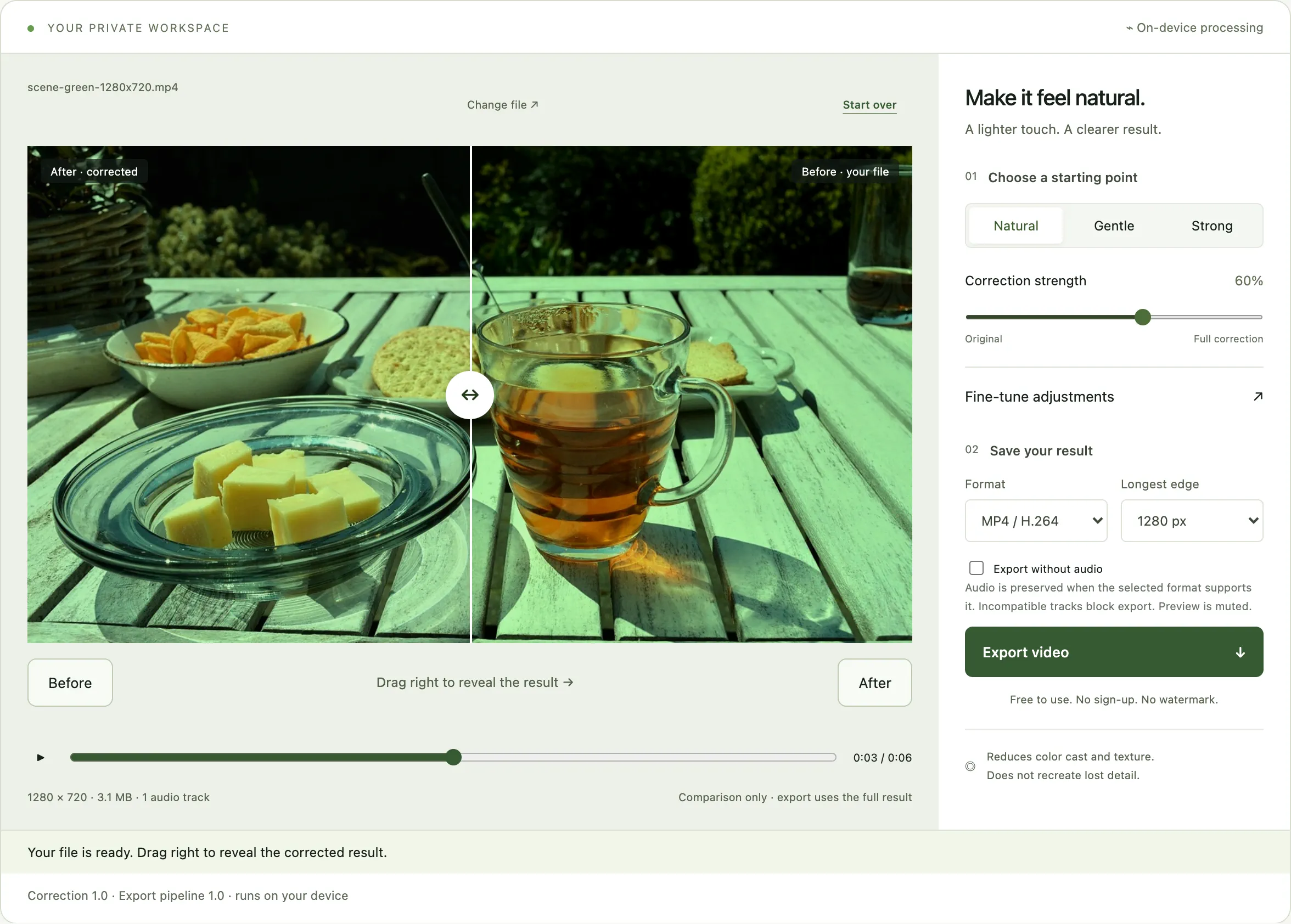
- Start gently, and compare the same frame. Move the divider across the neutral reference rather than judging from memory, and remember that one setting will be applied to the entire clip.
- Check the whole clip, not just the opening. Light changes within a shot, so a setting that fixes the first second can push a later scene too far.
- Check the audio, then export a new file. Keep the original clip untouched so you can compare or try again.
If the clip came from a phone, do not judge the result on the phone screen alone: the same file can look different on a laptop display. Open the exported copy at its actual size before deciding it is finished.
What we measured on a test clip
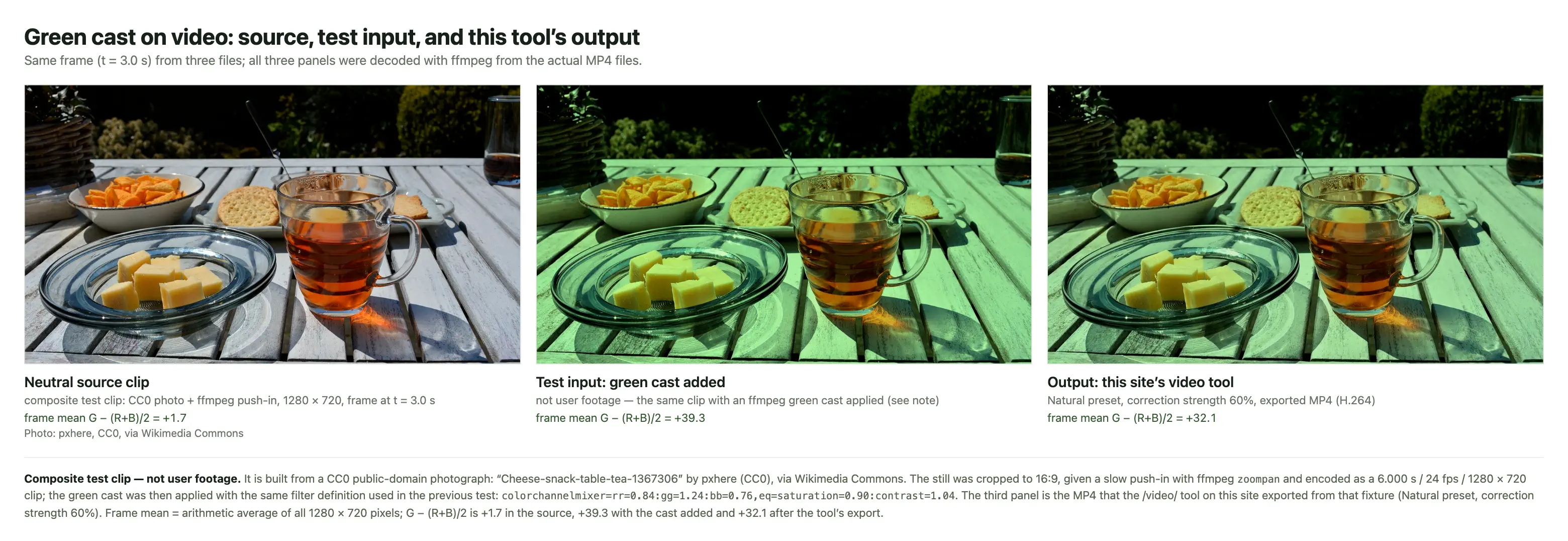
We did not want to describe the controls from the outside, so we built a test clip, applied a deliberately strong green cast to it, and ran that clip through this tool at several settings. Everything below comes from our own export files. The clip is a slow push-in on a public-domain photograph, not a person and not real user footage, and the cast is a defined colour transform rather than a copy of any app’s filter — both limits matter when reading the numbers.
| Clip or setting | Measured green cast |
|---|---|
| Neutral source (reference) | +1.7 |
| Green cast applied (test input) | +39.3 |
| Strength 60% — the Natural preset | +32.1 |
| Strength 100% | +27.7 |
| 100% plus green cast reduction 39 | +15.0 |
| 100% plus green cast reduction 80 | −9.5 |
What the numbers say:
- Every strength reduces the cast, and none of them returns the clip to the source. The 40% setting removes about 14% of the added cast, the 60% preset about 19%, and 100% about 31%.
- The Natural preset is a light touch, not a full removal. On a strong trend-filter cast it improves the preview without producing a neutral frame, which is easy to misread as “the tool barely works”.
- A strong cast needs the Fine-tune control, not just more strength. On this material the balance only returned to the source level around green cast reduction 61, interpolated between the 48 and 80 settings we tested; past that point the clip turns pink.
- The correction is not neutral to clean footage. Applied to the unmodified source clip, the same 60% setting shifted the balance about five points toward magenta, and 100% about ten. If a clip has no cast, the right amount of correction is none.
- We logged PSNR and we do not use it to rank these settings. The two highest PSNR values in the run came from the two most aggressive settings — including the one that had already overshot into magenta — while the still clearly green 100% export scored lower. The cast measurement above is the honest summary; the full table is published with the test files.
Our view: a slider that goes to 100% invites the assumption that 100% means “fully removed”. It does not — it means “fully blended”, which is a different thing. Start with a preset, judge it against something that should be neutral, and reach for green cast reduction when the cast survives. Then stop: an overshot clip looks as wrong as a green one, just in the other direction.
You can repeat it. The fixture builder, the export runner and the measurement script live in the repository as scripts/make-scene-fixture.mjs, scripts/export-video-strength-comparison.mjs and scripts/measure-video-comparison.mjs; the measurement table, the exported files and the extracted frames are kept with the project’s audit material. Both the fixture and the exports carry explicit BT.709 colour tags, so the frames are read in the same colour space — an earlier version of this test skipped that, and the untagged fixture produced a difference that looked like a tool error until we traced it.
The test covers one public-domain still frame, a slow push-in, one timestamp and the MP4 path at 1280 pixels. It says nothing about skin tones, real motion, longer clips or a specific app’s filter.
What cannot be recovered
A correction changes the pixels that are still there. It cannot undo the earlier steps that removed information:
- lossy compression has already discarded detail, and decoding does not restore it;
- areas that reached the brightest or darkest value are flat patches with nothing left inside;
- smoothing and blur removed high-frequency information, and reversing them amplifies noise instead of recovering the original.
The matcha filter guide explains each of these limits with its sources. For a video, the practical summary is: expect a cleaner, more natural clip rather than the clip you would have had without the filter.
What happens to the audio track
Audio handling is a separate decision from the picture, and it is where a video export most often surprises people.
- MP4 output copies a compatible audio track instead of re-encoding it, so the soundtrack survives unchanged.
- WebM output converts the audio to Opus, which changes the codec but keeps the sound.
- If the audio cannot be carried across, this tool blocks the export and tells you, rather than finishing and quietly dropping the track.
- If you genuinely want no sound, choose the explicit “export without audio” option instead of waiting for a failure.
When an export fails
Two failures are common with clips that came from social apps.
The file opens but cannot be encoded. The container is supported but the codec inside it is not available in your browser. Re-export the original as an ordinary SDR H.264 MP4 and try again. A recent desktop browser is more likely to have the encoder you need.
The file is too large. The input limit is 200,000,000 bytes, and there is no fixed minute limit — resolution, frame rate and device memory decide whether an accepted file can finish. Choosing the 1280-pixel output instead of 1920 reduces the work. Keep the tab open while the job runs, because the download only appears once the container is finalised.
Questions about removing it from a video
Can I remove the matcha filter directly in TikTok?
No. The filter is applied before the file is saved, and the app offers no way to reverse it inside the app. Anything you do afterwards works on the exported pixels.
Why does the filter stay after I save the video?
Because the saved file contains the result of the effect, not the effect itself. There is no separate layer left to switch off, which is also why the file plays the same way everywhere.
Which copy should I start from?
The largest one you can obtain. Start from the app’s own save or export rather than a screen recording, and use an original upload rather than a repost when you have the choice.
Will the corrected video keep its audio?
In MP4 output, a compatible audio track is copied rather than re-encoded. In WebM it is converted to Opus. If the audio cannot be carried over safely, the export stops instead of producing a silent file by accident.
Does a smaller export help?
It can help a device finish the job, because 1280 pixels on the longest edge needs less encoding work than 1920. It does not improve the source, and it does not remove the filter more effectively.
Can the original colours be restored exactly?
Only if the original material still exists — an editing project or the unedited clip. On an exported file, the correction is an interpretation of the remaining pixels.
Does 100% strength remove the whole filter?
No. On our test clip, 100% removed about a third of the measured green cast, while the 60% preset removed about a fifth. Reaching the source balance needed the green cast reduction control in Fine-tune, and pushing it too far flips the clip toward magenta. The strength slider blends a correction with the source; blending cannot invent the original.
Does this work on a phone?
The workspace runs in a mobile browser and the file never leaves the device, but long clips are slower on a phone and the tab must stay open. Start with the smaller output size on a phone, and check the saved file before deleting anything.
Sources and scope
The description of the 2026 trend and its alternative name comes from reporting read in full while preparing this page: Know Your Meme’s Matcha Filter entry, Lifehacker’s explainer (11 August 2026), The Tab (3 August 2026) and Interaksyon (12 August 2026). Access date: 19 September 2026. The compression and reconstruction limits are explained with sources in the guide.
The size limits, audio behaviour and failure handling described here are not borrowed from those sources: they describe what this site actually does, and they match the editor at the time of writing. Method versions are shown in the editor, and the photo tool covers the still-image case.